10.21.2017

How To Download Instagram Videos - Very Easy

Instagram is a simple way to capture and share the world’s moments. Follow your friends and family to see what they’re up to, and discover accounts from all over the world that are sharing things you love. Join the community of over 500 million people and express yourself by sharing all the moments of your day––the highlights and everything in between, too.

Use Instagram to:
•    Post photos and videos you want to keep on your profile grid. Edit them with filters and creative tools and combine multiple clips into one video.
•    Share multiple photos and videos (as many as you want!) to your story. Bring them to life with text and drawing tools. They disappear after 24 hours and won't appear on your profile grid or in feed.
•    Go live to connect with your friends and followers right now. When you're done, live stories disappear.
•    Send disappearing photos and videos, text messages and posts from your feed to groups and friends with Instagram Direct.
•    Watch stories and live videos from the people you follow in a bar at the top of your feed.
•    Discover stories, photos and videos you might like and follow new accounts on the Explore tab.

Back To Business 
 I'm not here to talk about Instagram, this article is specifically meant to teach you how to download videos from instagram so without wasting much of your time let's get down to business.. 


Steps To Download Instagram Videos
  1. Click here to download and install "save from net"
  2. Now open your instagram and locate the video you want to download to your phone. 
  3. The video will automatically start playing. Now click on the three dot menu on the upper right side of the video.
     
  4. Then click on "Copy share URL" and the link will be copied to clipboard. 
  5. After that just launch the "save from net” app you downloaded and paste the copied link in the URL space provided.
  6. FInally the download button will appear.. Click on the download button and your download WilI start immediately.. 

once the download is completed you'll be able to watch your video any time you want and without data connection. As simple as that! Don't forget to use the share buttons below!
4.12.2017

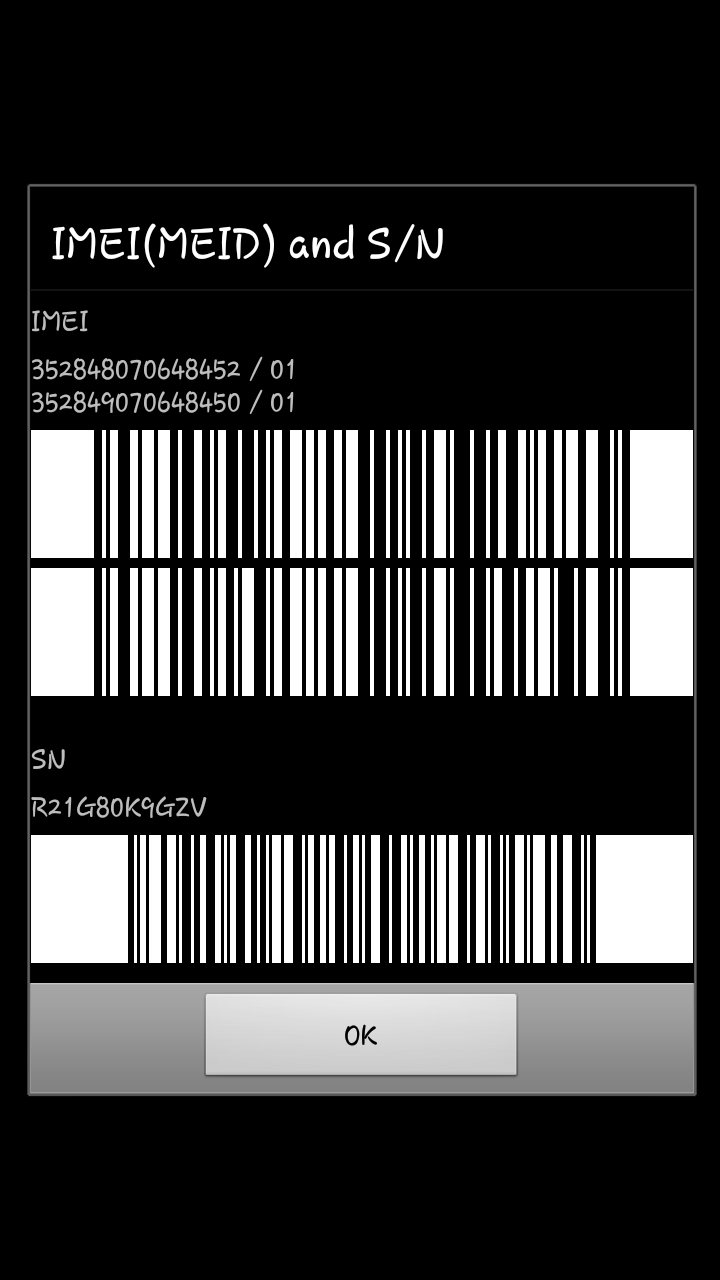
How To Easily Tweak The IMEI Of Non MTK Devices Without PC

Hello guys, we all know that Tweaking/changing of Android phone IMEI number is very important, it helps in free browsing cheats and sometimes when you format your phone, flash custom or stock rom your default IMEI will disappear and you'll need to tweak a new one.

It is very easy to tweak the IMEI of MTK devices and it can be done with apps like Mobile Uncle Tools and MTK engineering Mode but when it comes to non MTK devices, it's not an easy task.

Today i will teach you how to easily tweak the IMEI of non MTK devices with the help of an app named Shortcut Master, Shortcut Master is a powerful tool for creating, capturing and searching shortcuts. It can reveal any hidden shortcuts, hidden secret codes... in your device.

To Tweak the imei of non MTK devices simply download shortcut master here, install it and launch, tap the screen to open the menu and then click on secret code explorer, from the list click on engineer or any content that have engineer written under it and then select launch 1, you'll be taken straight to the engineer mode where you can successfully tweak any imei you wish.

That is all and hope it works for your phone.

3.21.2017

Easy way to send blank messages on whatsapp?

Whatsapp have so many tricks, and today I'm going to show you guys one interesting trick that allows you send blank/empty messages to your friends on Whatsapp. They will be truly confused when they get the empty message from you.

How To Send A Blank Message In WhatsApp

WhatsApp is probably the best instant messaging app in the world and it is available in almost all mobile operating systems like iOS, Android, Nokia, Blackberry, and Java mobiles. Get your friends confused as you send blank WhatsApp message to them. This tutorial is very easy because am going to show you an excellent app that lets users send blank Whatsapp messages to their friends.

First, you need to download an Android app called Empty, Empty is a new android app that allows you to send empty messages on whatsapp. We all know sending a blank message on Whatsapp is not possible this app EMPTY will do the trick for us.

How To Use Empty To Send Blank Message

Step 1. After downloading and installing the EMPTY app, on your smartphone open it.

Step 2. Once the empty app is launched, you will see a screen similar to the one we have below. Click on the “Send” button.

Step 3. The best thing about this app is that you don't need to do anything special. Just press the send button as shown in the launch screen then choose the contact you want to send the blank messages.

Your friend will sure get confused when they receive the blank message from you. This is how to send a blank message on WhatsApp. If you like this article, kindly share it with family and friends.

Download EMPTY APP here

2.17.2017

Transfer Files With High Speed Using Fast File Transfer Android App

Have you heard of WiFi Direct? It is native to many recent Android devices such as those of the Nexus, Xperia, and Galaxy families, WiFi Direct allow users to transfer files between WiFi enabled devices, in a manner similar to how many everybody use Bluetooth file transfer.


Now I'm going to introduce to you an app developed specifically to emulate WiFi Direct’s function, called Fast File Transfer. Fast file transfer is available for all WiFi hotspot-enabled Android devices, Fast File Transfer offers to be a preferable Bluetooth replacement, boasting data transfer speeds up to 20 times faster than standard Bluetooth, or more than 32 Megabytes-Per-Second which equals approximately 1 Gigabytes in 5 minutes.


Once you install the app, Fast File Transfer will add an option to the ‘Share’ intent called Fast File Transfer. When Fast File Transfer is selected, a WiFi hotspot is activated, along with a web address or QR code that the receiving device then browsed or scans, prompting the download. The great thing about this transfer method is that Android devices can now connect to iOS devices, BlackBerry Devices and PC.


About Fast File Transfer

FastFileTransfer has a simple mission: Offering fast, offline file exchange between literally any platforms.

In a world of dozens of different operating systems, with many different file transfer standards and protocols, it's still difficult to transfer files between them. With FastFileTransfer, you have a flexible solution for any data exchange need.

Features:
• Lightning fast: Transfer 1 GB in under 4 minutes
• Send multiple files or even whole folders (as ZIP)
• Easy to follow step-by-step instructions

• Receive from any device and operating system that supports WiFi
• No need for an existing WiFi connection
• Works completely offline
• The receiver does not have to have the app installed
• Send multiple files as ZIP
• Display QR codes for faster receiving
• Optionally use NFC for pairing
• Unique engine specifically developed for compatibility against a wide range of Android devices
• Send to an unlimited number of devices at the sam

1.17.2017

How To Remove And Change The Background Of A Photo With Android Device

Hello guys! I know Many of you will think that it is impossible to remove or change the background of a photo without using Photoshop, well you're wrong!  now it can also be done with Android too. A lot of apps are released on a daily basis for Android and after testing some of them, I picked up a few of them that can do the job completely without stress.

 Here are the few I selected
  •     Background Eraser.
  •     Background Remover
  •     Background Eraser and Remover
  •     # PhotoLayers〜Superimpose,Eraser
  •     TouchRetouch
  •     Picart
  •     Your sense.....not HTC sense lol

Now I am going to explain to you how to use one the above mentioned apps "BACKGROUND ERASER" to remove the background of any image.


Tutorial Using Background Eraser
Using background eraser to remove the background any image in Android is very easy and straightforward.


  • The first thing you must do is to download and install Background Eraser on your smartphone.
  •  After downloading the app, launch it, you will see some options like "How to Use" "Trouble shooting"  "Report a Problem" "Load a photo" etc 
  • Click the Load a photo to pick the image you want from your Gallery.
  • I will advise you crop the focused part of the picture out as possible.
  • Now click done when you are done with cropping.
  • Three options will show up which are Manual, Auto, and eraser, choose the Auto option with zoom in into picture.
  • If during removing you make a mistake you can correct it by just clicking  "revert the change" the eraser can fix that out.
  • Click the done option and put the smooth level to maximum so that you get the smooth background.
  • Now click on the Finish option there, and after a little working you should be done, you have the image with the removed background!

Works like charm! Right?
If you enjoyed this post kindly share it with the share buttons below.

12.19.2016

You Can Use Your Android device As Second Monitor For Your PC Or MAC

Have you ever wondered what it would look like to Use your android device as second monitor to your PC? Maybe you actually thought its impossible? It is not and today I am going to guide you through on how to go about that. This will help you monitor some activity on your PC.


A computer consists of a single screen for display which is required for us to view all our activities we performed, primary users would not have the need to connect more monitor to their computer. An advanced technical task may require one to have an extra monitor been attached to your PC to manage the difficult task getting the monitor screens will be much expensive. In this post, we are going to show you how to use your Android as a second monitor to your PC or Mac which will reduce the cost of getting a monitor screen

Steps to Use an Android device as a Second Monitor for your PC

Required:
 Android device
 Your PC
 iDisplay.apk(download)
 iDisplay driver(download)
 Your brain(download link not available... Lol)


  1. Download the iDisplay on Android device and also download the iDisplay driver on the computer. Double click on the iDisplay driver you downloaded follow the instruction.
  2. After following the above instruction, yo should have the driver installed automatically.
  3.  Now restart your computer
  4.  Check your system tray if the driver is installed or not.
  5.  Click on the iDisplay installed on your tablet or Android device to launch, it will not require any settings from the beginning it will just searching for the computer WiFi signal. You are advised to turn on your Computer WiFi. Once the wifi signal is found by Android app, just go ahead and connect it to the options. You will get a pop-up message on the screen of your PC, just hit that away by clicking on Always Allow, hit the another warning too and you shall be ready for the process.
  6.  After the above is done, you will find your connected Android device showing the same screen with your computer monitor.
  7.  You can now set up settings for display resolution, color, etc. directly through the setup display of your Windows.


Disconnecting is just easy, do that from the iDisplay icon in the action center of the app!

I believe you can do a lot with this tutorial. share the post with friends on social media